(二十)把分布与更新过程画成图
1. Figure 与 Axes 各自负责的对象
Pygame 由程序按帧重画窗口,Matplotlib 则把数据组织为可以保存的图表。import matplotlib.pyplot as plt 引入常用建图入口;fig,ax=plt.subplots() 同时得到整张 Figure 和一个坐标区域 Axes。
Axes 的 bar 画柱状图,scatter 画散点,plot 按给定次序连线;set 设置标题、轴名等信息。Figure 的 savefig 按扩展名保存 SVG、PNG 等文件,最后通过 close 释放图表。这里的 Axes 是绘图对象名称,NumPy 的 axis 是数组轴参数,读代码时分别看清所属对象。Figure 与坐标区域
先在 plots.py 保存本章共用的配色与字体,下面的小例通过导入 STYLE 使用这些设置:
# 项目文件:analysis_project/src/readingarray/plots.py
# Figure 保存整张图,Axes 承担各个坐标区域;画完关闭,不留下交互窗口。
import matplotlib.pyplot as plt
import numpy as np

STYLE = {
    "font.family": ["Microsoft YaHei", "DejaVu Sans"],
    "font.size": 11,
    "axes.spines.top": False,
    "axes.spines.right": False,
    "axes.edgecolor": "#D9E0EC",
    "axes.labelcolor": "#24324A",
    "text.color": "#24324A",
    "xtick.color": "#637189",
    "ytick.color": "#637189",
    "figure.facecolor": "#F5F7FB",
    "axes.facecolor": "white",
    "svg.fonttype": "none",
}
2. 从分箱次数得到直方图
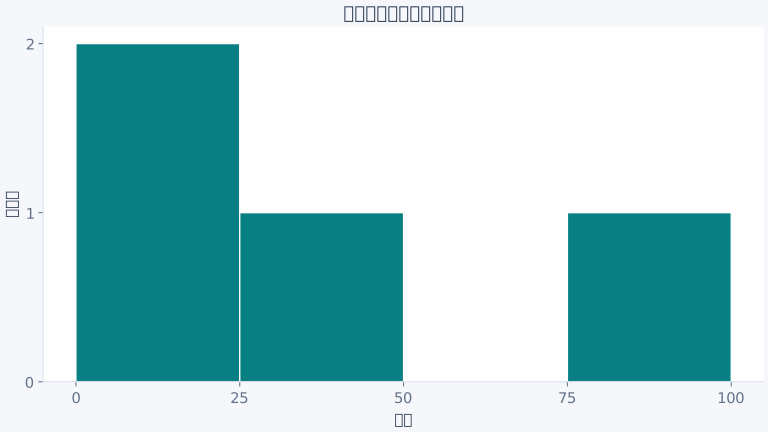
四条时长 [10,20,30,100] 分到区间 0–25、25–50、50–75、75–100 中,次数依次为 [2,1,0,1]。histogram 先统计频数,hist 再把同样的分箱画出来;各区间采用左闭右开,最后一段还包括最右端 100。分箱规则
# 项目文件:demos/distribution.py
# 分箱先数每段包含多少项,再把频数画成相邻柱;最后一段包含最右端。
from pathlib import Path

import matplotlib.pyplot as plt
import numpy as np
from readingarray.plots import STYLE

values = np.array([10, 20, 30, 100])
edges = np.array([0, 25, 50, 75, 100])
counts, _ = np.histogram(values, bins=edges)
print("频数", counts.tolist())
output = Path("output")
output.mkdir(exist_ok=True)
with plt.rc_context(STYLE):
    fig, ax = plt.subplots(figsize=(8, 4.5), layout="constrained")
    try:
        ax.hist(values, bins=edges, color="#087F82", edgecolor="white")
        ax.set(
            title="四条自拟阅读时长的分布",
            xlabel="分钟",
            ylabel="记录数",
            xticks=edges,
            yticks=range(3),
        )
        fig.savefig(output / "distribution.svg")
    finally:
        plt.close(fig)
rc_context 为这一张图临时应用配色与字体,不把设置留给后面所有图。figsize 设图的英寸尺寸;layout 的 constrained 让标题和坐标说明参与布局,避免标签挤到图外。
3. 同时观察拟合与误差变化
继续在同一 plots.py 加入回归绘图。subplots(1,2) 得到一行两个坐标区域,axes 是可索引的数组,分别用来画预测与损失:
# 续写同一文件:analysis_project/src/readingarray/plots.py
def plot_training(x, y, parameters, history, path):
    with plt.rc_context(STYLE):
        fig, axes = plt.subplots(1, 2, figsize=(11, 4.5), layout="constrained")
        try:
            grid = np.linspace(0, 3.5, 100)
            axes[0].scatter(x, y, color="#A85D11", label="自拟记录")
            axes[0].plot(
                grid,
                parameters[0] + parameters[1] * grid,
                color="#087F82",
                label="更新后的直线",
            )
            axes[0].plot(
                grid, np.zeros_like(grid), "--", color="#637189", label="初始预测"
            )
            axes[0].set(
                title="预测与记录", xlabel="阅读时长单位", ylabel="完成页数单位"
            )
            axes[0].legend()
            axes[1].plot(np.arange(history.size), history, color="#4657B5")
            axes[1].set_yscale("log")
            axes[1].set(
                title="均方误差逐次下降",
                xlabel="参数更新次数",
                ylabel="MSE(对数刻度)",
            )
            fig.savefig(path, bbox_inches="tight", pad_inches=0.15)
        finally:
            plt.close(fig)
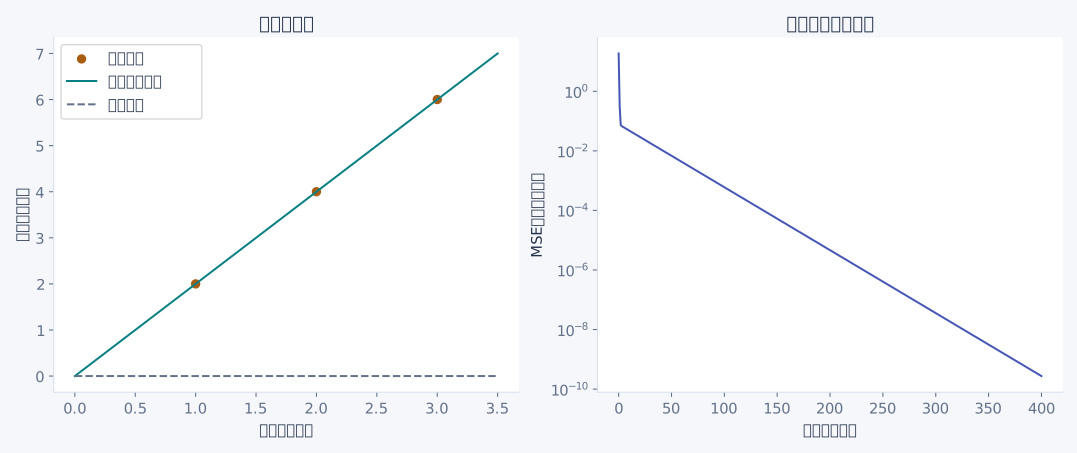
linspace 生成一组横坐标,再用相同参数得到直线上的预测;zeros_like 生成同样形状的零值,用来画初始预测。另一边画 history 的变化,纵轴设置为对数刻度,让误差从较大值降低到很小值的过程仍能辨认。保存时的 tight 把图中文字一起算进范围,pad_inches 再留下四周空白。
# 项目文件:demos/train_plot.py
# 用自拟记录反复更新,再用最小二乘核对参数;图表分别展示拟合和误差变化。
from pathlib import Path

import numpy as np
from readingarray.plots import plot_training
from readingarray.regression import solve_least_squares, train

x, y = np.array([1.0, 2.0, 3.0]), np.array([2.0, 4.0, 6.0])
parameters, history = train(x, y)
exact = solve_least_squares(x, y)
print("迭代参数", parameters.round(6).tolist())
print("最小二乘", exact.round(6).tolist())
print("起止误差", round(history[0], 6), round(history[-1], 9))
output = Path("output")
output.mkdir(exist_ok=True)
plot_training(x, y, parameters, history, output / "regression-training.svg")
运行后在 output 得到 regression-training.svg。散点是这三条自拟记录,初始直线为 0,更新后的直线接近 y=2x;损失图的横轴从 0 开始,表示已经完成的参数更新次数。